If an occurrence was entered by mistake (the wrong date, the wrong associate, or it should have been an excused absence), you can delete it and add it again correctly. There are a few rules that decide whether you can delete it yourself, and they’re explained below.
Who can delete occurrences
Each account chooses which user levels can delete occurrences. By default, Level 2, Level 3 and Level 4 users can. Level 1 users can never delete occurrences.
If you don’t see Delete when you open an occurrence, your level isn’t allowed to delete on your account. Ask a user at a level that is allowed, usually HR or a Level 3 user.
Level 3 and Level 4 users can change which levels can delete occurrences:
- Select Accounts, then select your account. The Settings page opens.
- In the Occurrences card, find What user level(s) are allowed to delete occurrences? and tick the levels you want.
- Select Save changes.
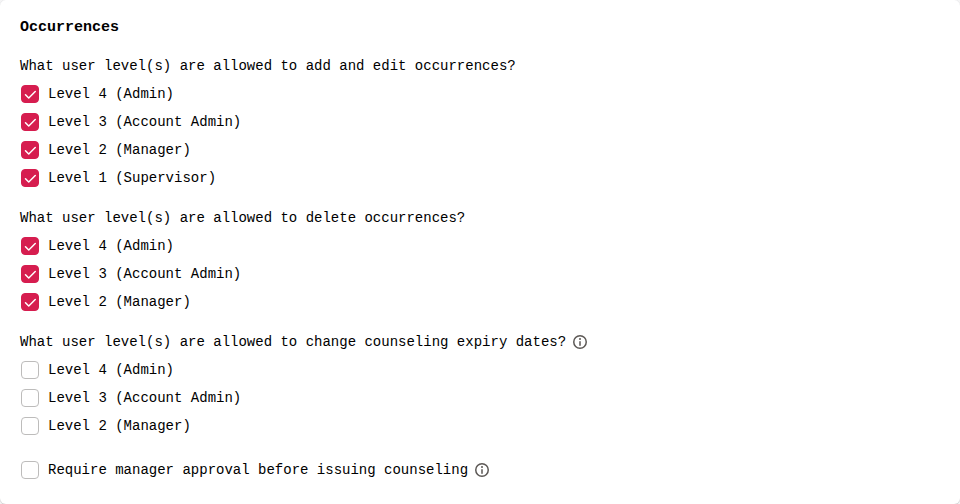
See How to edit account settings for more about this page.
Delete an occurrence
- Open the associate’s page and select the occurrence in the Occurrences list.
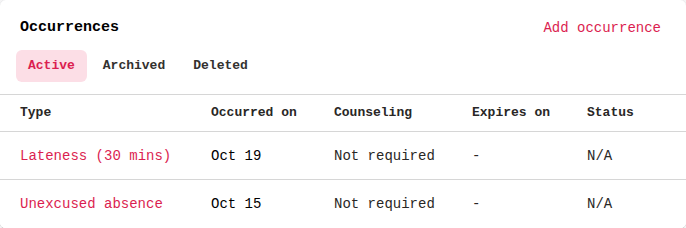
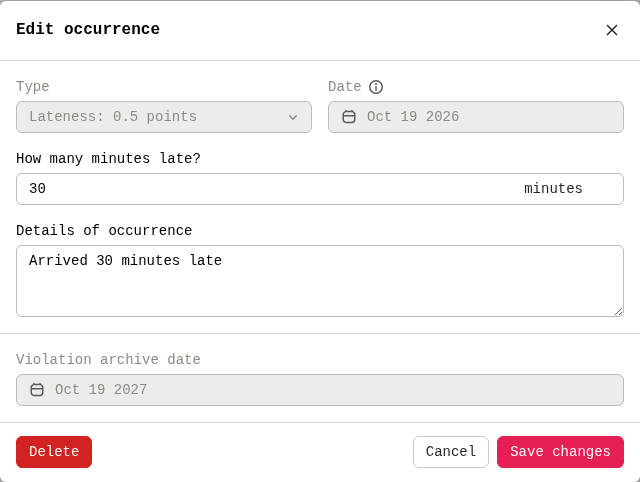
- Select Delete at the bottom left of the occurrence window.
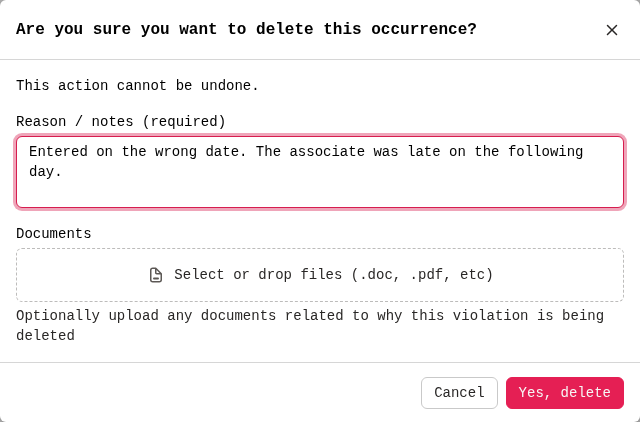
- Enter why you’re deleting it in Reason / notes (required). You can also add Documents that support the deletion, but they’re optional.
- Select Yes, delete. This can’t be undone.
The occurrence is removed from the associate’s active points. It isn’t erased: Level 3 and Level 4 users can find it on the Deleted tab of the Occurrences list. Opening it there shows its Deletion notes, the reason and documents that were entered, for the record.
Only the newest occurrence can be deleted
If you select Delete on an occurrence that has newer occurrences after it, you’ll see Delete newer occurrences first instead of the confirmation.
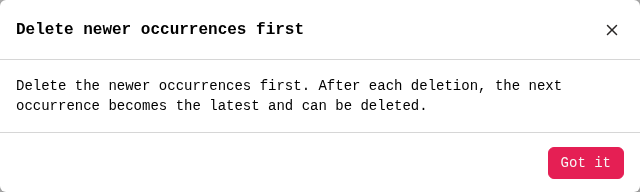
This is intentional. Each occurrence’s points, track level and counseling depend on the occurrences before it. Removing one from the middle would quietly change the level and counseling of everything after it, so counseling sheets that were already issued or signed would no longer match the associate’s record.
You can’t change the date of a saved occurrence
Once an occurrence is saved, its date is locked. Hover over the info icon next to Date to see why. Dates also lock once counseling is issued or signed for that occurrence.
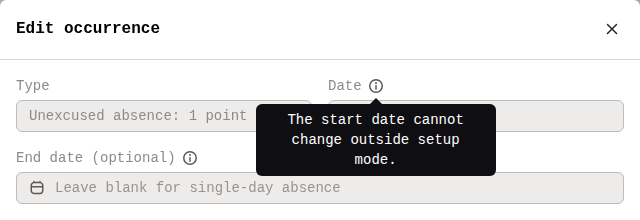
To fix a wrong date, delete the occurrence and add it again with the right date. You can still edit the Details of occurrence without deleting it: change them and select Save changes.
Remove or correct an older occurrence
If the occurrence you need to remove has newer occurrences after it, you have two options.
Ask support to put the associate back into setup (recommended)
Email support@trackpath.app with the associate’s name and ID and the occurrence you need to remove. We can put just that associate back into setup. In setup, the occurrence can be deleted or corrected on its own. The newer occurrences stay as they are, with their notes and documents, and their points are recalculated. We’ll send you the steps, and setup is closed again when you’re done.
While the associate is in setup, you can’t add new occurrences for them. Mark setup complete as soon as the correction is done.
The counseling level on the later occurrences isn’t recalculated. Check each one by hand against your policy at the new point total.
Delete and re-add the newer occurrences yourself
- Write down the details, notes and documents on each newer occurrence. Re-adding them creates new records, so this information isn’t carried over.
- Delete the newer occurrences one at a time, starting with the newest.
- Delete or fix the occurrence you meant to.
- Re-add the newer occurrences, oldest first, with their original dates.
Things to know before you start:
- Have a Level 3 or Level 4 user do this. Level 1 and Level 2 users can only add occurrences dated within the last 7 days. If a Level 2 user deletes older occurrences, they won’t be able to put them back. Level 3 and Level 4 users can add occurrences as far back as the policy’s active period, which is 12 months by default.
- A new occurrence can’t be dated before the associate’s latest active occurrence. That’s why the occurrences have to be re-added oldest first.
- Re-adding occurrences may generate new counseling sheets. These need to be issued and uploaded again.
If you’re not sure which option is right, or you’d like us to check the associate’s record first, email support@trackpath.app.