Get access to TrackPath when your location already uses it

Updated on October 7, 2026

If your location already uses TrackPath, you get your login from someone at your own account, not from TrackPath support. Because TrackPath holds confidential associate information, support doesn’t create users or grant access to accounts. A person who already has access adds you and sends you an invitation.

Step 1: Ask someone at your account to add you

Ask an account admin, HR, or an on-site manager who already uses TrackPath to add you as a user. They need to be one of these:

  • A Level 3 or Level 4 user. They can always add users.
  • A Level 2 manager. On most accounts managers can add users too. Some accounts limit this to Level 3 and Level 4.

They select Users in the navigation menu on the left, then click Add user at the top right of the page. They fill in your details and pick your access level and cost centers. If you’re not sure which level you need, see User access levels.

Users page with the Add user button at the top right

Step 2: They send you an invitation

After saving you as a user, they open your profile. In the Account status section they click Send invitation email. Once an invitation has been sent, the button reads Resend invitation email.

The same section also shows Or send them this invitation link with a Copy to clipboard link. They can use it to send you the invite link directly, for example if the email is stuck in a spam filter.
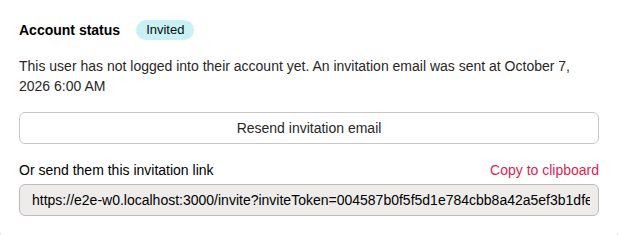
Account status section on a user's profile, showing the Resend invitation email button and the invitation link with Copy to clipboard

The invitation controls only appear until you log in for the first time.

Step 3: Set your password

Open the invitation email and follow the link. It takes you to Account setup, where you choose your password. Then log in with your email address and that password.

Invitation links work for 7 days, and each link can only be used once. If you open an old or already-used link, you’ll see This invite link has expired or was already used.
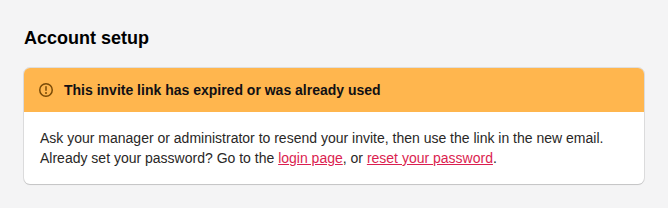
Account setup page showing the warning: This invite link has expired or was already used

  • You never set a password: ask your manager or admin to click Resend invitation email on your profile, then use the link in the new email.
  • You already set a password: go to the login page and log in. If you don’t remember your password, click Forgot password? on the login page to get a reset link.

Don’t use Sign up or Request access

The Sign up / Request access form on our website is only for organizations that are new to TrackPath. Submitting it creates a request for a new account. It doesn’t add you to the account your location already has, so no setup email will arrive for your location. The form says so:
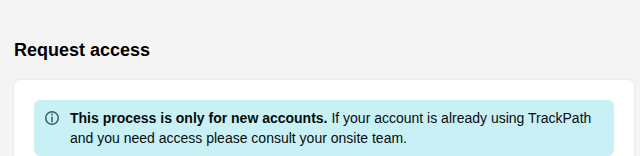
Request access page with the note: This process is only for new accounts. If your account is already using TrackPath and you need access please consult your onsite team.

If you’ve already submitted it by mistake, follow the steps above instead.

Already have a login but need access to other locations?

If you already use TrackPath and need access to another account or cost center, you don’t need a new login. Ask a Level 3 or Level 4 user to update your cost center access, or ask a manager to request a transfer. See Transfer users to another account or cost center.


More support articles

Choose who receives your invoices

Add or remove the finance email addresses that get your TrackPath invoices, and change your primary billing contact.

Unlock your account

Steps to unlock your TrackPath account when it has been locked due to unpaid invoices.

Enter associate occurrence history

Backfill historical occurrence data when first setting up your account

Subscription invoices and receipts

Where to find your subscription invoices and receipts.

Self-reported absences

Save time by letting associates self-report absences by calling a phone number.

Handling self-reported absences

Learn how to take action on self-reported absences

Import associates

Learn how to import associate data in TrackPath

Add an occurrence

Learn how to add an occurrence to an associate in TrackPath

SMS Consent Best Practices for Cover Shifts

Essential guidelines for obtaining proper employee consent before using SMS notifications for Cover Shifts

Remove an associate (terminate) and undo it

Learn how to remove an associate from TrackPath, including duplicates, and how to undo a termination

Transfer users to another account or cost center

Learn how to transfer an existing user to a new account or cost center

Cover shifts overview and account setup

Learn how to set up and use Cover Shifts to automatically fill open shifts with qualified associates.

Add a cover shift

Learn how to create a cover shift to quickly fill open shifts with qualified associates.

User access levels

Learn about the different user access levels that TrackPath offers

Uploading Counseling/Expiry

Learn about how counseling expires and how to upload supporting documents

Counseling breaks

Learn about counseling breaks with TrackPath

How to add an associate

Learn how to add associates in TrackPath

How to edit account settings

Learn how to edit account settings in TrackPath

How to add a supervisor

Learn how to add supervisor users in TrackPath

How to add a manager

Learn how to add manager users in TrackPath

Transfer associate to cost centers

Learn how to transfer an associate to another cost center using TrackPath

Issue counseling for an occurrence

Learn how to issue counseling for an occurrence using TrackPath

Add work rule violations

Learn how to add work rule violations using TrackPath

Add excused absences

Learn how to add excused absences using TrackPath

Switching from credit card to direct billing

How to switch your billing method to direct billing.

Enter associate occurrence history

Backfill historical occurrence data when first setting up your account


Still need help?

Send us an email and we'll get back to you as soon as we can.