TrackPath doesn’t have a separate delete option for associates. To remove an associate, including a duplicate profile created by mistake, you terminate them.
Terminating only removes the associate from TrackPath. It doesn’t change their employment. The termination reason and date mirror the fields in PeopleHub so your records match, but what you choose doesn’t affect anything else in TrackPath. If you terminate someone by mistake, a Level 3 or Level 4 user can undo it.
Who can terminate an associate
- Level 3 and Level 4 users can terminate an associate, and it takes effect immediately.
- Level 2 users can request a termination. TrackPath emails the account’s Level 3 and Level 4 users to approve or reject the request.
- Level 1 users can’t terminate associates.
See User access levels for more about each level.
Terminate an associate
- Open the associate’s page.
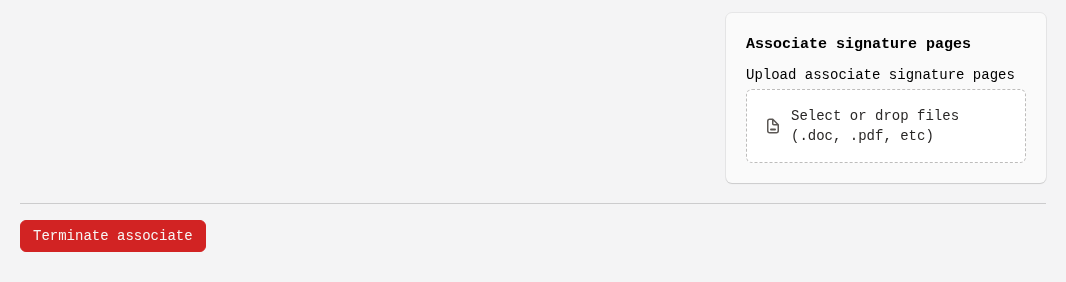
- Scroll to the bottom of the page and select Terminate associate.
- Choose a Termination reason and a Termination date. For a duplicate profile, any reason will do.
- Answer Has the HR service center contacted?
- If the associate also has a TrackPath login, choose whether to Also remove their user access. The associate profile and the login are separate, so you can keep the login and change their user level instead.
- Select Terminate associate.
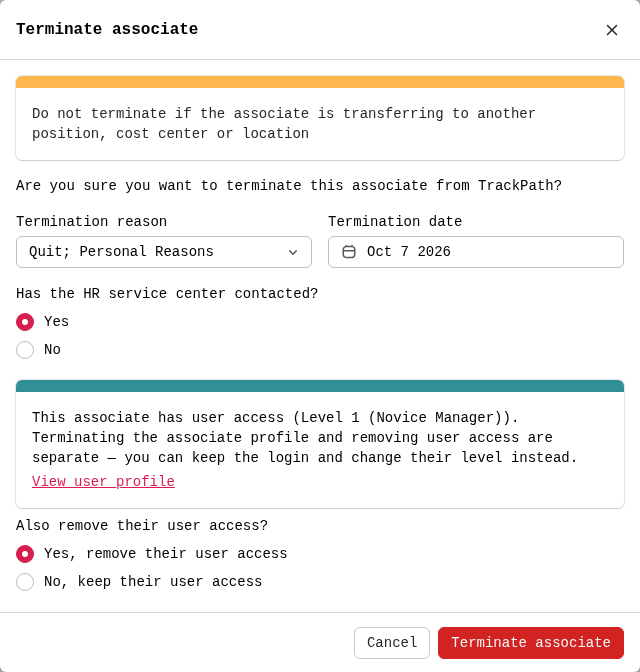
Don’t terminate an associate who is moving to another position, cost center or location. Transfer them instead. See Transfer associate to cost centers and Transfer users to another account or cost center.
You can’t terminate an associate while they have outstanding counseling. Resolve the counseling first, then try again.
Requesting a termination (Level 2)
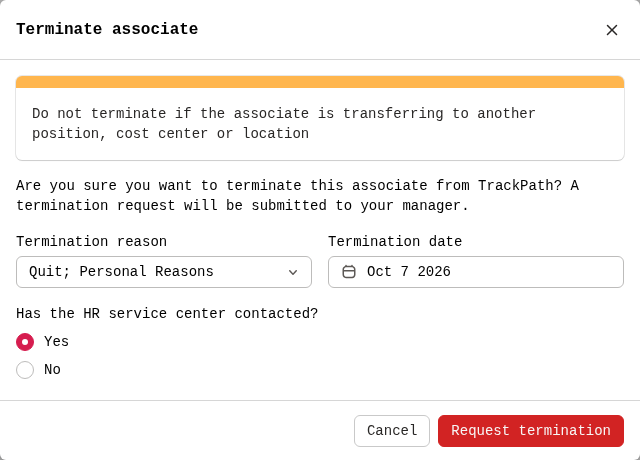
Level 2 users follow the same steps, but the button at the bottom of the window says Request termination. The associate shows as Pending termination until a Level 3 or Level 4 user approves or rejects the request, and you get an email with the decision.
Find terminated associates
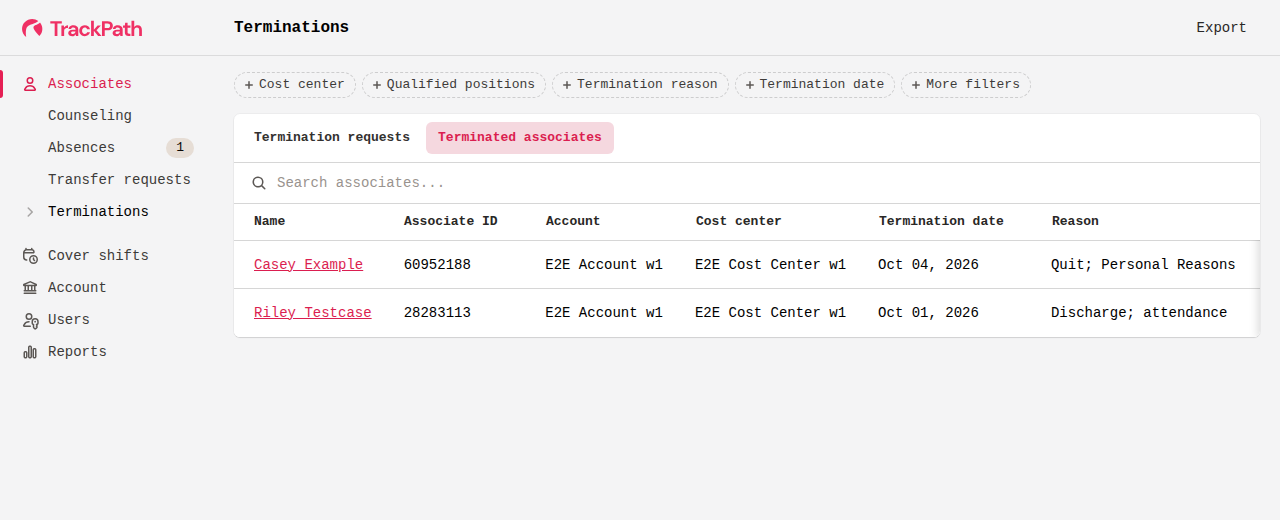
Select Associates, then Terminations in the menu on the left. The page has two tabs:
- Termination requests: requests from Level 2 users. Level 3 and Level 4 users approve or reject them here.
- Terminated associates: everyone who has been terminated, with their termination date and reason.
Use Export at the top right to download the list on the current tab.
Undo a termination
Only Level 3 and Level 4 users can undo a termination.
- Go to Associates → Terminations and open the Terminated associates tab.
- Select the associate’s name to open their page.
- Select Undo termination at the top right of the page.
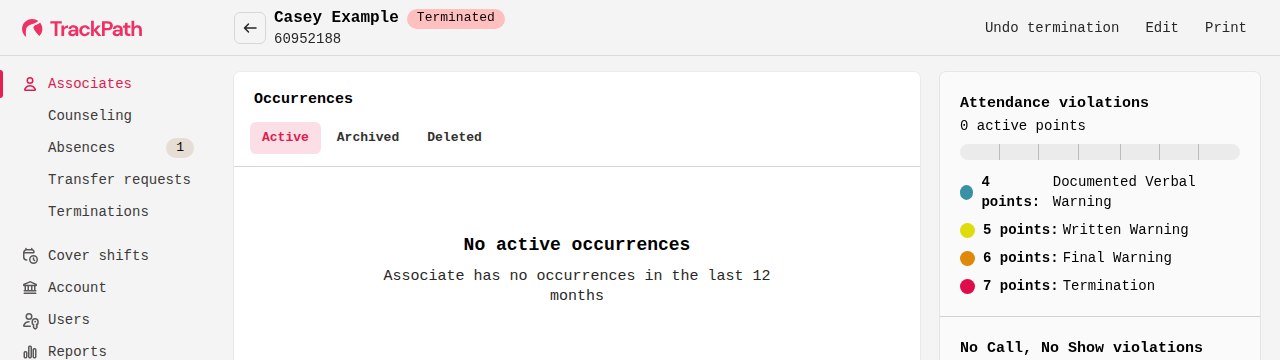
- Select Undo termination to confirm.
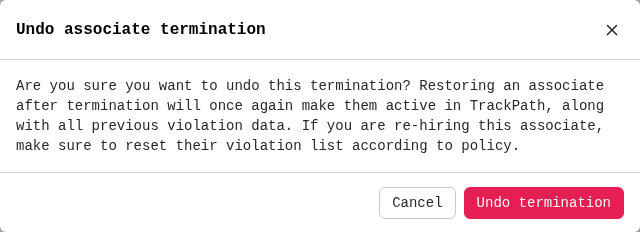
The associate is active again, with all of their previous violation data. If you’re rehiring them, reset their violations according to your policy.
Undoing a termination doesn’t give back a TrackPath login that was removed when they were terminated. If they need one, add them again from the Users page.
Remove many associates at once
There’s no option in TrackPath to terminate associates in bulk. Instead, email TrackPath support a CSV file listing the associates to remove, and we’ll process it for you. Use these columns, or start from the bulk termination template:
- Employee ID
- First Name
- Last Name
- Account
- Cost Center